NextGen Gallery
Add and link NextGen Gallery to Page or Post in WordPress
I pulled this tutorial from the school site because it contains the most often missed step when creating a new gallery. (Reposted from here)
It’s after you add a new gallery to a page but then find the gallery doesn’t link from the album to that page. This tutorial shows you that it is actually a 2 step process.
Step 1: add the gallery to the page, the gallery will appear, as will the page when you navigate to it; BUT, in order to get there from the album, we need to link it.
Step 2: link the gallery to the page – Unless you link the gallery to the page from the Gallery Settings, neither the gallery or the page will appear when you click the thumbnail from the Album.
Step One: Add a gallery to an existing page/post
Open the page or post that you want the Gallery to appear on.
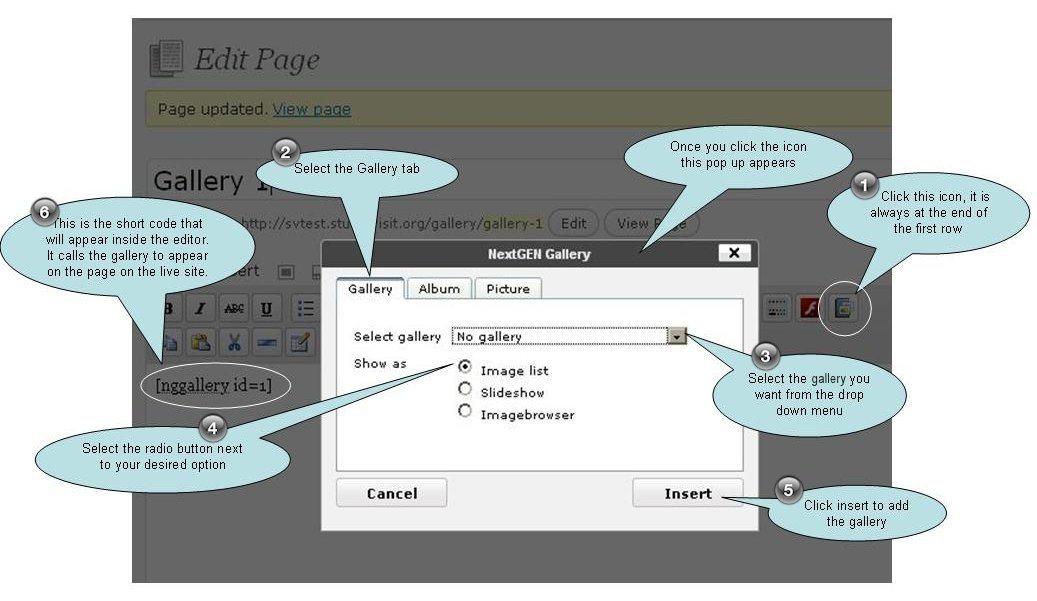
 Click on the “Add NextGen Gallery”
icon in the editor menu (top row, far right)
 A popup will open as shown in the image above.
Select the Gallery tab
 From the drop down menu in the popup window, select the gallery you want to insert on the page.
 Select the “image list” radio button
for a gallery selection.
 Click
Click
insert.
 The short code as shown will be add to the page. This calls in the images in the gallery with the ID number shown.
Remember to “Update” the page/post.
Step Two: Link the gallery to a page in Gallery Settings
When a visitor clicks on the thumbnail in your album, the gallery is suppose to open on the page you just inserted the gallery (Step 1). In order for that to happen, we need to tell the album which page to retrieve (step two).
Navigate to Gallery > Manage Gallery and open the gallery you want to link.
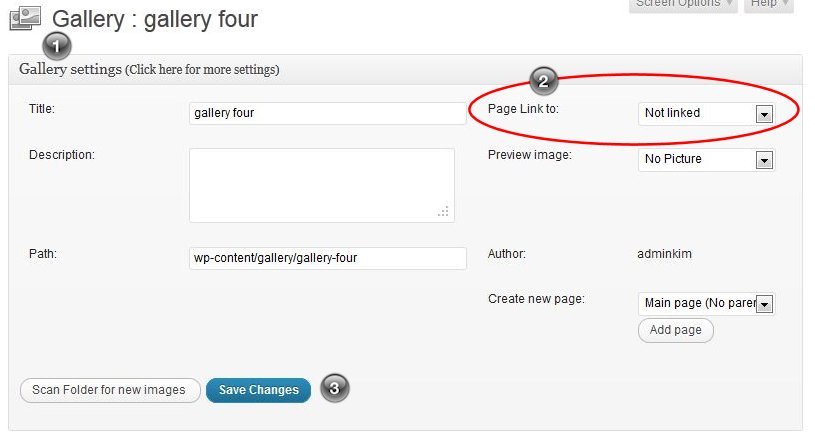
 If collapsed; expand the Gallery Settings task pane at the top of the page by clicking on the bar where it says “Click here for more settings”.
Page Link to: from the drop down menu,
select from your list of pages.
Save Changes
Quick Summary – once your create your gallery, manually add NextGen Gallery to a Page or Post using the NextGen icon in the editor. Then go to the gallery and select the page you want to link it to so your images appear on your website.
The most FAQ – What’s the difference between a Gallery and an Album?
An Album acts as a container for your Galleries, with one image that represents the work in that gallery. When you click on the thumbnail in an Album, that gallery page appears with all the images in that gallery. A Gallery is an individual group of images.